


If you make changes to a block which is called in another block, or if you change a UDT definition which is used in a DB, FC, FB or in another UDT, this gives rise to a time stamp conflict. The time stamps (code and
interface time stamp of the blocks) are used to monitor consistency in the STEP 7 program. There is more information available about the time stamps in the Online Help in STEP 7 under
- Time Stamps as a Block Property and Time Stamp Conflicts
- Time Stamps in Instance Data Blocks
- Time Stamps in UDTs and Data Blocks Derived from UDTs
- Time Stamps in Logic Blocks
- Updating Block Calls or UDT Applications
If you have made changes to a block (FB, FC, DB) in the interfaces, the following error message appears when the calling block is opened:
"There is a time stamp conflict with at least one block call."
After clicking OK to acknowledge, the called block which has been changed appears in red in the LAD/STL/FBD editor. The table below describes a series of possibilities or remedies for remedying time stamp conflicts in blocks
Remedies
Menu command: "Check and Update Accesses"
This instruction is used to check all operands for type compatibility; if any errors are discovered, they are highlighted in red. Furthermore, the data blocks are updated or restructured, and the call interfaces are updated insofar as possible.
Open the LAD/STL/FBD editor for the calling block and update the block call via "File > Check and Update Accesses".
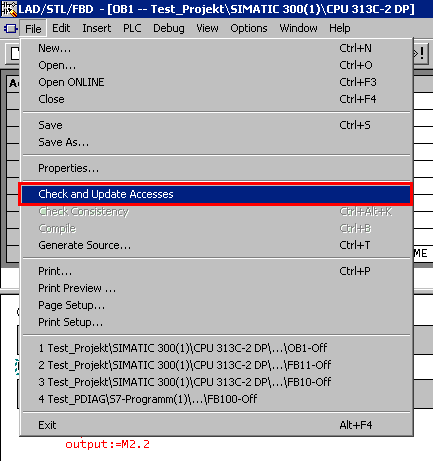
If, for example, you have removed variables from the interface for the called block, then STEP 7 cannot find a unique assignment between the variables, and the call remains red. In this case, proceed to No. 2 or
perform the "Updating Block Calls" function.
Menu command: "Edit > Go To > Next Error"
After opening the LAD/STL/FBD editor, click "Edit > Go To > Next Error" to automatically jump to the block call which is highlighted in red.
Updating Block Calls
Click the block highlighted in red in the LAD/STL/FBD editor or apply the function described in No. 2. The "Edit > Call > Update" menu command can be used to update any block which has become invalid. The
following interface changes in the called block are then automatically updated:
- Inserting and deleting parameters.
- Changing parameter names and types.
- Changing the order (recopying) of parameters.
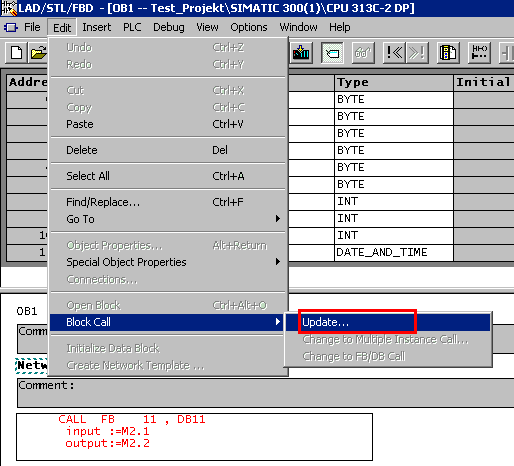
If you click the "Update..." button, this will take you to the "Interface Update" dialog box. In this dialog box, the left pane shows the block prior to the interface change, and the right pane shows the block as it
currently is. You can now update the existing parameters in the old box.This involves selecting a parameter from the old block and copying or moving it to the new block.
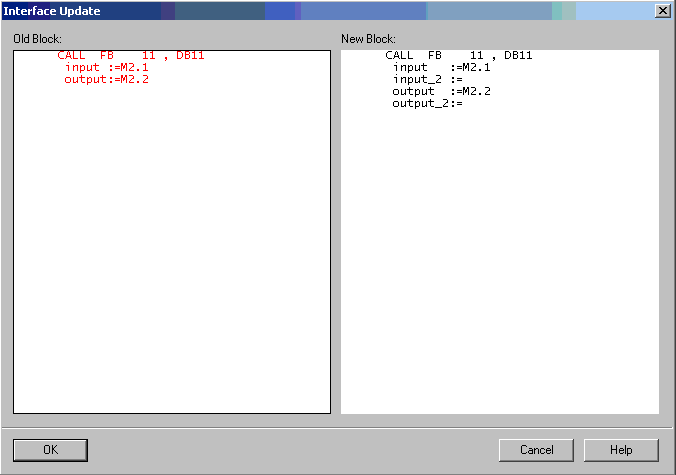
Once you have performed an interface update and clicked "OK" to exit the dialog, the invalid block is replaced by the updated block.
Deletion and new entry of the block call
The block call can also be updated by deleting the block call and re-entering it.
- If you click the FB in FBD view to highlight it and delete the block via "Edit > Delete", the instance DB is also automatically deleted.
- The entire line (e.g. CALL FB1,DB1) has to be deleted in STL view.
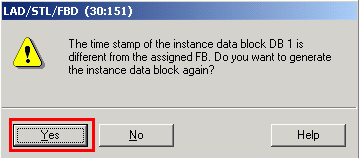
Then call the block, including the instance DB, again and confirm the subsequent message with "Yes".
Further processing of a DB if the UDT used in the block has been changed
If, for example, you have created a UDT (used-defined data type) variable, the data block has to be updated every time the UDT is changed. As soon as you open the data block, the error message appears:
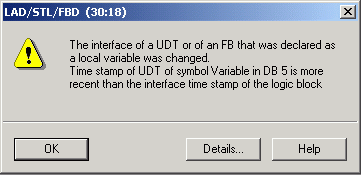
The message also indicates that the UDT's time stamp is more recent than the data block's. When you acknowledge the message described above, the variables of the UDT are marked in red. In addition you see the structure of each UDT before the UDT was changed. Update the block call with the menu command "File > Check and Update Accesses".
Block-consistency check
Perform the block-consistency check and compile the entire STEP 7 program in the block-consistency check via the function "Program > Compile all". The block consistency check function automatically clears the
majority of all time stamp conflicts and block inconsistencies.
- either via the menu command "Edit > Check block consistency ..." or
- right-click and then select the "Check block consistency ..." function in the pop-up menu that opens.
The structure of your S7 program then appears.
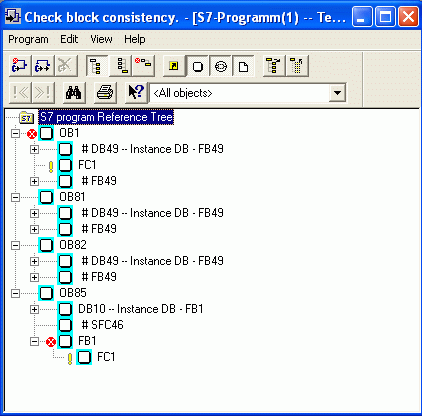
You can check the blocks' consistency in this display. If a block is marked with a red cross (in this example, OB1 and FB1 in Fig. 01), this indicates that there is an interface conflict in that block. The block responsible is marked with a yellow exclamation mark ( FC1, in this case).
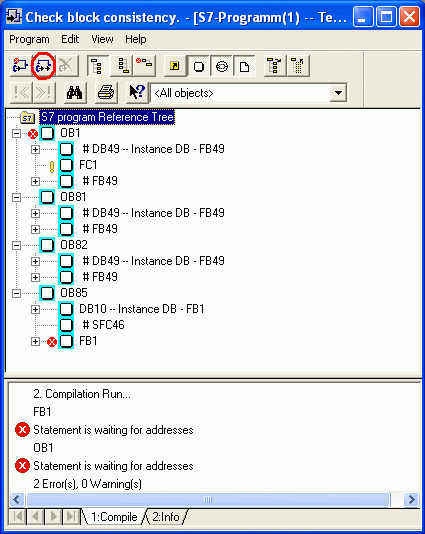
In order to determine the precise cause of the interface conflict, compile the entire program either with the menu command "Program > Compile all" or by clicking the "Compile all" button
All the blocks are now compiled one after another. If an error occurs during compilation, the cause is flagged up in the output window by a red circle.
Comments | NOTHING